|
NeuroScript MovAlyzeR Help | Send comments on this topic. |
Glossary Item Box
|
NeuroScript MovAlyzeR Help | Send comments on this topic. |
Experiment Conditions
This is a common topic for MovALyzeR, GripAlyzeR & ScriptAlyzeR. These programs will be referred to as MovAlyzeR on this page.
Trial Replications per condition
Condition Properties
|
Condition Properties |
Applicable to: | ||
| ScriptAlyzeR | MovAlyzeR | GripAlyzeR | |
 |
|
| |
| Stimuli | |
||
| Consistency Checking | |
|
|
| Stroke Description | |
|
|
| Word Extraction | |
|
|
| Visual Feedback | |
|
|
| Knowledge of Results | |
|
|
| Sound | |
|
|
| Gripper | | ||
After creating a new experiment the particular experiment shows the Groups and Conditions headings, otherwise double click Experiments.
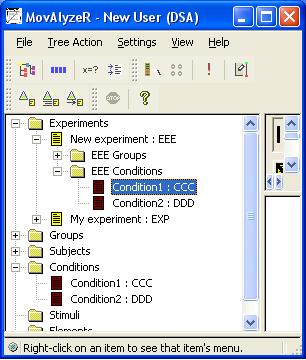
When creating new conditions or editing existing conditions, they will be added to a master list, and can be used for future experiments. This assures consistency of a user's database. For example, in the window below, the conditions CCC and DDD appear both under the experiment and in the Master 'conditions' list.
Create/Add a condition to an Experiment
o Right click on the experiment >Add Condition(s).
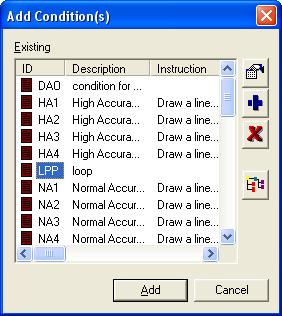
o The 'Add conditions' window will appear as follows:
Add condition
Pick an existing condition in the list (e.g., 'LPP') by clicking on the ID and click 'add'.
Previously added conditions will not appear on the list, but are still in the master list.
Create new condition
Add a new condition to the master list by clicking the + button.
Set the necessary properties as described in the following sections: General, Stimuli, Stroke description and word extraction and click OK. The condition will be added to the master list.
NOTE: Alternatively, fill in the general information and click OK. You can add the other properties by right-clicking the condition > condition properties later.
Select the condition(s) to be added and click add.
The other tasks that could be done in this window are: 1) Remove a condition from the master list: click the 'X' button, 2) Check the condition properies: click the hand button, 3) View relationships : click the tree button.Remove a condition from an experiment
Go to the Experiment (e.g., EEE) and expand the tree by clicking '+' buttons. Experiment conditions (EEE conditions), right click > Remove from experiment.
The condition will be in the master list to make it available for the current EEE experiment or other experiments for the user.
To permanently remove the condition, navigate to master list of the conditions, right click > delete..
To permanently remove the condition you can also right click on the experiment > add conditions > select the condition > click the 'X' button.
Duplicating an existing condition
Go to the condition you want to duplicate by either expanding the experiment tree and looking under experiment conditions or go to the master list of conditions.
Right click on the condition > Duplicate.
All the properties are retained except the three letter ID. Change the three letter ID, alter any properties you want, and click 'OK'.
The condition is then added to the master list, not to the experiment. You can then add it to any experiment as described above.
This option is extremely useful to create a number of similar conditions without having to enter all the information repeatedly.
This feature can be used to generate a set of multiple conditions based on a generic condition. Word Extraction experiments, which require a large number of conditions to extract individual words, can be readily implemented using this option.
Right click on the condition to replicate > Generate Multiple Conditions
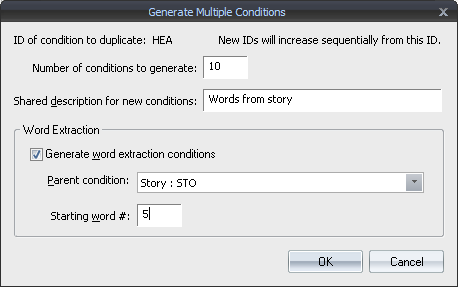
Number of condition to generate
Number of new conditions to create that will be based on the current condition.
Shared description for new conditions
Generic condition description for newly created conditions.
Word Extraction
Generate word extraction conditions
Check to setup newly created condtions to extract words from a specific parent condition.
Parent condition
Condition from which individual words will be extracted.
Starting word
The word index to begin word extraction. eg: entering 5 in this field and generating 10 conditions in total will enable the extraction of word numbers 5-14 from the parent condition STO.
Trial Replications per condition
Properties per experiment condition (condition added to an experiment):
The number of trial replications of a particular condition can be chosen per experiment.
Double click a particular experiment > Double click conditions > Right click a particular condition > Click Trial Replications.
Never collect only 1 trial. The absolute minimum is 2 trials. Accuracy improves linearly with 4, 8, 16, 32, ... trials. Since trials may fail the consistency test, it is recommended to collect at least 6 trials.
NOTE: Since the number of trials are specific to an experiment, when the same condition is used in different experiments, you cannot set the number of trial replications for a condition in the Master list.
| See Also |
Condition Properties General | Condition Consistency Checking | Condition Word Extraction | Condition Visual Feedback Settings | Condition Sound Settings | Feedback | Stimuli | Stimulus Editor | Stroke Description | Experiment/Group/Subject Process
© NeuroScript LLC. All Rights Reserved.